- Real-time BPM detection
Analyzes incoming audio and reports the tempo with best-in-class accuracy. - MIDI CC output
Sends tempo data to control your DAW’s project tempo automatically. - Tempo multipliers
Use ½x, 1x, or 2x buttons for half-time or double-time tracks. - Zero latency
Pure pass-through audio with no coloration or delay.
Compatibility
The Tempi plugin uses Apple’s AUv3 protocol and should be available to any AUv3-capable DAW running on a Mac: Logic Pro, MainStage, GarageBand, Pro Tools, Ableton, Reaper, and probably any other Mac DAW that’s been updated in the last few years.
Installing the Plugin
To install, simply download the host app and run it. That’s it! The host app registers the plugin automatically so there’s no need to install an actual plugin anywhere. The host app includes a Settings panel where you can enable the IAC driver, change MIDI settings, and control the warm-up time.
Using the Plugin
To use the Tempi AUv3 plugin just insert it onto any track as an Audio FX plugin from Audio Units → Made by Windmill. I usually place it on the Stereo Out track so that it “listens” to the whole mix. After playback, the plugin will begin analysis and, after the “warm-up time”, start reporting BPM values. Shorter warm-up times are more responsive; longer warm-up times will initially be more accurate.
Depending on the genre of music, you may find that Tempi reports BPMs at half or twice the expected tempo. If so, click one of the ( ½x ) ( 1x ) ( 2x ) buttons to modify the reported tempo.
Setting Up MIDI Routing in Logic Pro
Disclaimer: I’ve only ever used MIDI CC events for tempo control in Logic Pro. I can’t see why they wouldn’t work for other DAWs, but your mileage may vary and the instructions below are specific to Logic.
Tempi sends BPM data via MIDI CC messages through the IAC Driver. Follow these steps to connect it to Logic’s tempo control.Step 1: Enable the Tempi IAC Driver
Open the Tempi host app, go to Settings, and enabled the IAC driver. If needed you can change the MIDI CC# or the offset. Logic Pro uses an offset of 50 so this is the default.
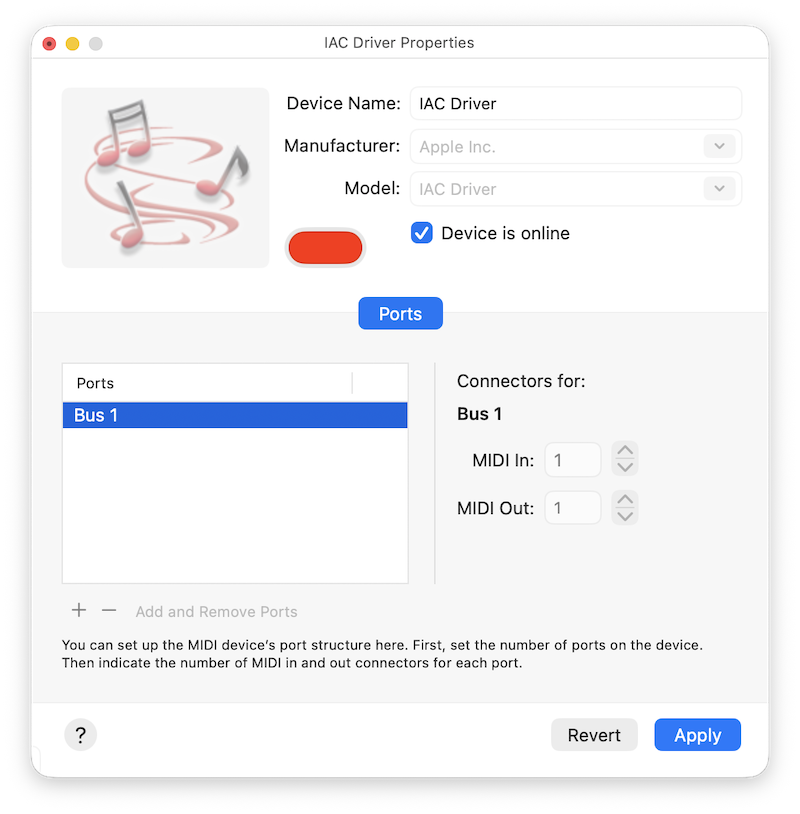
Step 2: Enable the IAC Driver
Open Audio MIDI Setup (in Applications/Utilities), double-click IAC Driver, and make sure “Device is online” is checked.
Step 3: Connect to Logic’s Tempo Fader
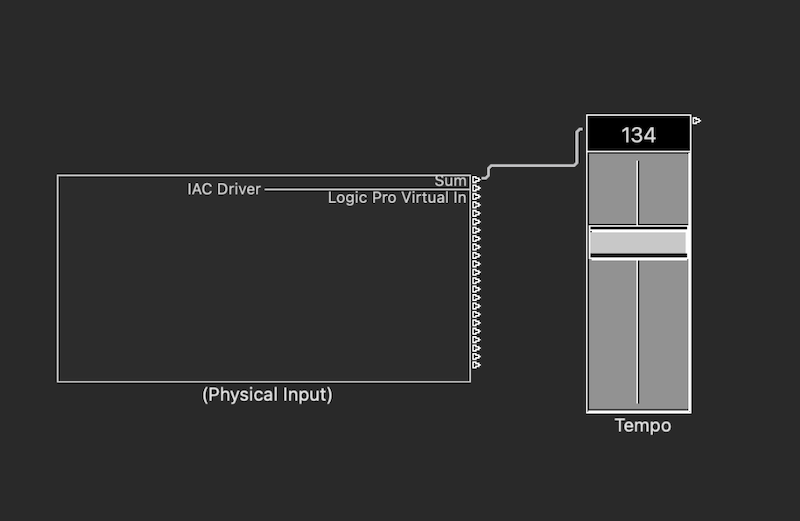
- In Logic, open the MIDI Environment (type Command-0 or hold the Option key down while selecting Window → Open MIDI Environment).
- Add the IAC Driver from New → Physical Input
- Add a Tempo fader from New → Fader → Specials → Tempo Control.
- Position them next to each other and connect the “Sum” patch from IAC Driver to the input of the Tempo fader, like so:
- Configure the Tempo fader properties like so:
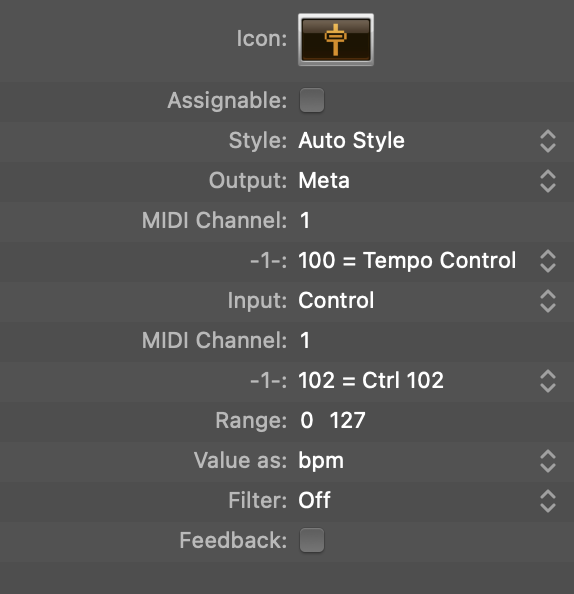
Now when Tempi detects the BPM, it will automatically update your project tempo.